- 1. What are e-Authorisations?
- Trademark and Industrial Design Registration is a service integrated into the e-Authorisations system to enable legal representatives of business entities to manage e-Powers of Attorney for access to e-service via the link of e-Services Access (grant/revocation/cancellation). Also, e-Authorisations module enables managing of rights to access e-service.
This functionality allows the legal representative of a business entity to grant power of attorney to another natural or legal person in the e-Authorisation service who can use a specific e-service on their behalf, i.e. log in and/or sign electronically with their own credentials.
To be specific, in the Trademark and Industrial Design Registration service, an intellectual property representative, who is also the legal representative of the business entity on whose behalf he acts, can grant his employees a power of attorney for the Trademark and Industrial Design Registration service. An employee with the assigned power of attorney can log in to the service and electronically sign the application for trademark, design registration or subsequent submission with any high-level credential (eOI, business or personal certificates of FINA or Certilia) which helps eliminate the need for all employees to use the same certificate issued to the representative on whose behalf the request for trademark application is being filed.
It is important to point out that the power of attorney obtained through e-Authorisations is exclusively a power of attorney to use the service and should not be confused with the power of attorney of the party for representation in the field of intellectual property.
More about e-Authorisations on the following link (https://e-ovlastenja.gov.hr/regular/auth/login).

- 2. Granting e-Power of Attorney in the e-Authorisations system
- By logging into the e-Authorisation service in the e-Citizens system, the user will be offered a menu for selecting the business entity on whose behalf he wishes to grant an e-Power of Attorney to another natural or legal person. (Figure 1).

Figure 1: Selection of a business entity for issuing an e-Power of Attorney in the e-Authorisation system
Then, you need to select the Access to e-services option (Figure 2), and select the Trademark and Industrial Design Registration service in the list of offered services (Figure 3) and fill in the information about the authorised person (Figure 4).
After successfully granting the e-Power of Attorney, the authorised person will receive a message in his user mailbox about the granted power of attorney and instructions for confirming it.

Figure 2: Providing access to e-services

Figure 3: Selecting an e-service to grant Access

Figure 4: Data about the authorised representative in the e-Authorisation system
- 3. Change of the entity
- By registering for the service, the legal representative of a business entity or a person who has previously received an e-Power of Attorney for the service in the e-Authorisation shall be automatically offered the selection of the entity on whose behalf the registered user will submit applications for trademark and industrial design registration (Figure 1).

Figure 1: Change of the entity
In the example on Figure 1, Ana Anić selected the business entity of ANA TEST1 D.O.O. on whose behalf she intends to file an application for trademark registration (Figure 2).

Figure 2: Display of a selected entity in the e-Citizens/e-Business system navigation bar
After the application has been successfully filed, the generated PDF confirmation will show information about e-Authorisations, i.e. that the natural person Ana Anić filed the application on behalf of the legal entity ANA TEST1 d.o.o. based on e-Power of Attorney in the e-Authorisations system.

- 4. Change of an entity does not work
- If, after selecting and changing the business entity, the name and surname of a natural person (your name) are still displayed, it is necessary to check in the e-Authorisation e-service whether you have given consent to the use of personal data within the e-Authorisation system.
Log in directly to the e-Authorisation system (https://e-ovlastenja.gov.hr) and immediately on the home page include your consent to the transfer of your personal data to all e-services integrated into e-Business for the purpose of authorisation. Immediately on the home page on the left side, select "Terms of Use" in the menu and include your consent there (Figure 1). After that, repeat the login procedure to the Trademark and Industrial Design Registration service and select the business entity on whose behalf you wish to submit applications for trademark and industrial design registration.

Figure 1: Giving consent for use of personal data within the e-Authorisations system
- 5. What does it mean when error 26 or error 36 occurs?
- The above error 26 and 36 could mean that the user support is not properly installed on the user's computer. It is necessary to check whether the new version of the Certilia certificate is installed, and if the system reports the setting of some additional option, such option must be set. If it is not possible to solve the problem by the user, it is possible to send an e-mail to IT support at the e-mail address: eprijava@dziv.hr.
-
- 6. After logging in with personal or business credentials, the business entity for which the logged-in person is authorised is not displayed in the Change Entity menu on the navigation bar
- This situation occurs in cases where a business entity does not have a personal identification number (OIB) but some other identifier, such as a personal identification number (MBO) for, for example, freelance activities, secondary occupations, crafts, and the like.
Data on the relationship between the registered user and business entities in the e-Citizens system is retrieved from the competent registers: for legal entities from the OIB system (data from the Court Register and the Register of Associations), for craftsmen from the Trade Register, for family farms from the Register of Farmers, and for budgetary and extra-budgetary users from the Register of Budgetary and Extra-Budgetary Users.
There is no competent register for the categories of freelance activities and secondary occupations, but data is entered into the e-Authorisation system through the support of the e-Authorisation Officer, by submitting the prescribed documentation proving the relationship between the User - the authorised person and the business entity (explained in more detail in the e-Authorisation service in the FAQ section under number 6).
In this case, the registered user who is an authorised person of a business entity of a legal entity, freelancer or secondary profession, and who has registered with the appropriate credentials (personal or business credentials of that business entity), can, through the support of the e-Authorisation Officer, request to connect to the business entity electronically, using the Online System for Document Delivery application (OSPD at the link https://ospd.fina.hr/). After FINA carries out the procedure for connecting the authorised person's OIB and the identifier of that business entity, the user will be able to select that business entity in the Change Entity menu and access its business user mailbox.
- 1. e-Fees
- Trademark and industrial design application (registration) service is integrated into the e-Fees system, enabling payment of automatically calculated cost with a credit card or generating an order and subsequent payment via Internet banking or at a bank.
By clicking the Submit button located on the data review page (the last step after filling in the data), the system automatically directs the user to the e-Fees user interface where the user selects the payment method (Figure 1).

Figure 1: Request and payment order details in the e-Fees system
e-Fees system offers several payment options:
- Card payment
- Scan and pay
- Payment slip
- Internet banking
It is recommended to pay by card, in order to speed up the whole process. In the case of payment by card, the payment confirmation is immediate, and in the case of choosing one of the other methods, the payment confirmation arrives only the next working day or later.
IMPORTANT: After making the payment, it is necessary to click on the Close Request button (at the bottom of the page) so that you can be redirected to sign the request and thus complete the application filing process.
If you made the payment by card, the cost is in the status Paid, and if you made the payment in one of the other ways, the cost is in the status To Be Paid, and remains there until the payment is made.
- 2. Error with selecting SeP payment
-
If an error occurs when selecting the payment method Payment via SeP (e.g., incorrect OIB), it is necessary to check the correctness of the OIB that the NIAS system returns during registration, or when changing the entity (Figure 1).
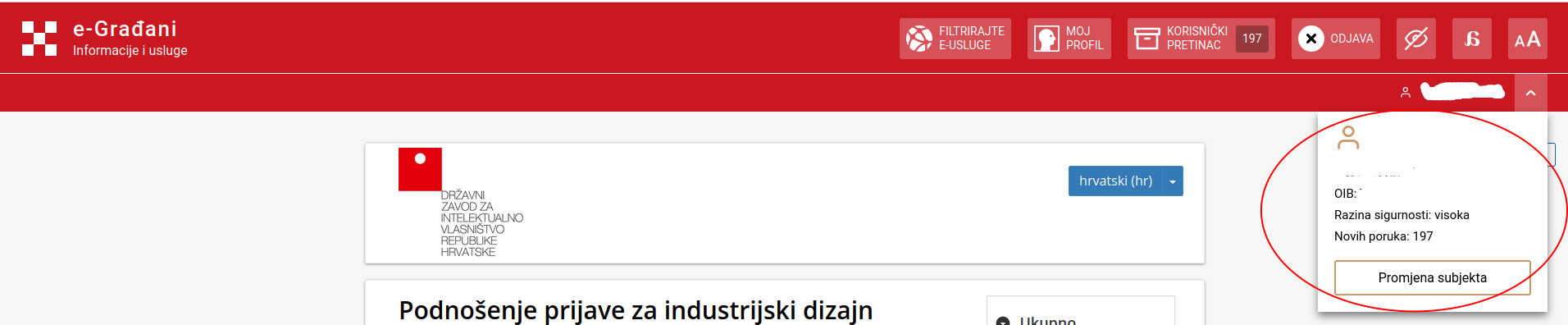
Figure 1: Checking the OIB
UIf the OIB is not forwarded correctly, or the NIAS system forwards MB, MBO or some other identifier that is not OIB, payment via the SeP system will not be possible. In this case, you need to do the following:
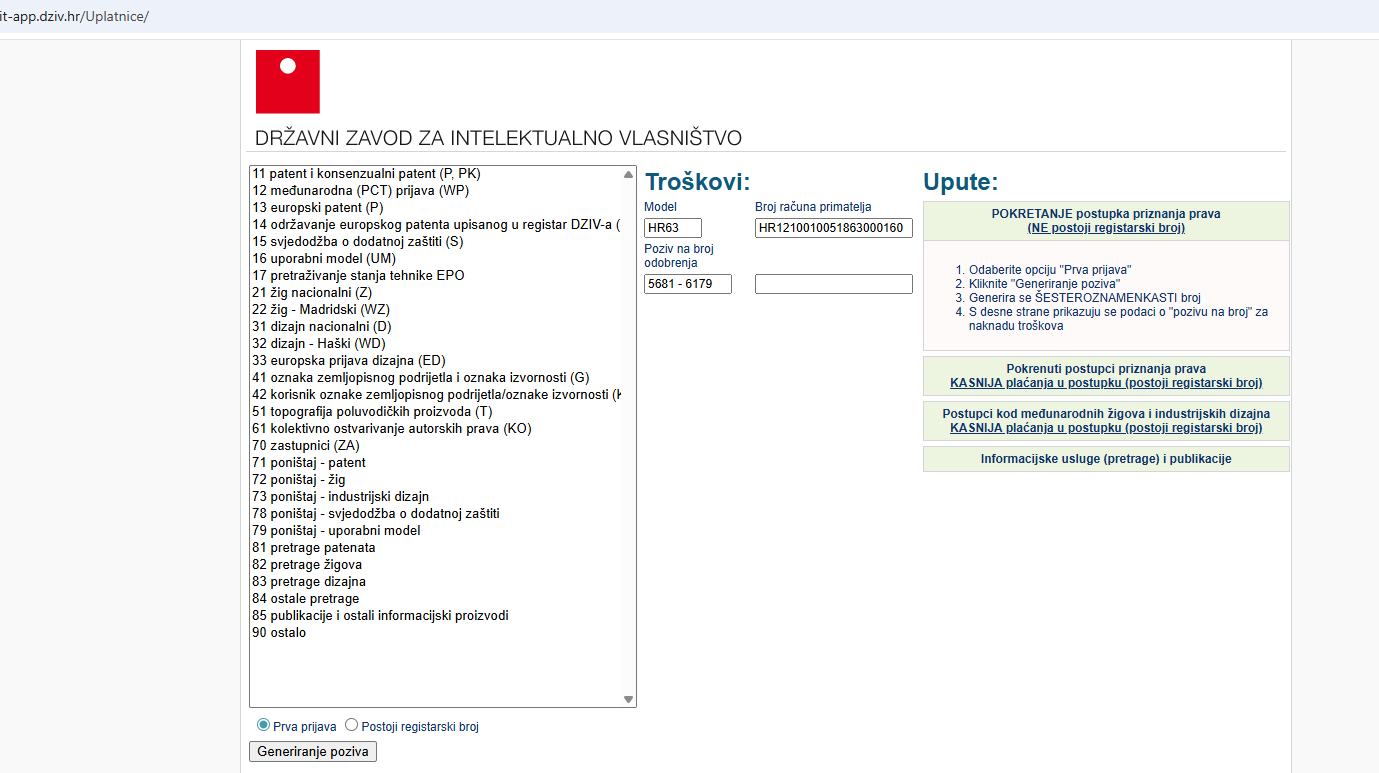
Figure 2: Generating reference number application
- If you selected First Application (i.e., there is no registration number), by clicking on Generating reference number under Costs, you will get a full reference number to be recorded/saved for payment
- If you selected Existing registration number, that number needs to be entered (without the letters indicating the procedure, refer to the Instructions) into an open box, by clicking on Generating reference number under Costs, you will get a full reference number (which depends on the registration number) to be recorded/saved for payment
- Make the payment regularly or via internet banking according to the generated payment slip
- Save the payment confirmation (PDF) to the computer
- Open e-Applications, upload the application draft that you saved on the computer before selecting payment method
- Select Payment outside of SeP
- Enclose PDF payment confirmation to the submission before sending / signing it
- Sign it electronically and submit the submission
- 1. What is necessary to successfully file an e-application?
- In addition to entering all the necessary data, it is necessary to make a payment for the costs or open a payment order (depending on the selection of one of the offered options) and, at the end, it is mandatory to sign the application electronically - without an electronic signature, the application is not successfully filed, or the application will not be visible in the system.
- 2. What is electronic signing?
- The signing of applications for trademark and industrial design registration and subsequent submissions is done by electronic signature by calling the public service of the state infrastructure e/m-Signature, for the functioning of which it is necessary to have the necessary and up-to-date software support of the certificate issuer installed. Digital certificates issued by FINA (Financial Agency) and AKD (Agency for Commercial Activities) are used for electronic signature.
For each device on which a digital certificate has been issued, it is necessary to install software support according to the instructions received from the certificate issuer (FINA or AKD). Electronic identity cards eOI contain AKD certificates issued under the jurisdiction of the Ministry of the Interior (MUP). After receiving the electronic identity card, it is necessary to register according to the instructions of the MUP.
- 3. Software support for digital certificates management
- Depending on the type of a cryptographic device containing user digital signature certificate, corresponding user support is installed.
Certificates issued by Fina can be delivered on one of the following two cryptographic devices:
- ActivIdentity USB device or FINA (or a business bank) smart card
- Gemalto USB device
It is necessary to install corresponding software support for these cryptographic devices, depending on the type of a device.
AKD certificates are being delivered with smart cards, USB devices or electronic identity cards (eOI) and they rely on AKD’s software support (eOI, i.e., Certilia Middleware).
|
Certificate
issuer
|
Fina
|
AKD
|
|
Type of card / USB device
|
ActivIdentity USB device or smart card with Fina certificate
|
Gemalto USB device
|
Electronical identity card
|
Smart card or USB device with Certilia certificate
|
|
Necessary software support
|
ActivClient
|
IDPrime or other software support
|
eOI Middleware
|
Certilia Middleware
|
- 4. Software support for ActivIdentity USB devices and cards
-
For users of ActivIdentity devices (USB devices or smart cards), ActivClient needs to be installed on a user computer.
Supported version is ActivClient 7.1. Certificates do not need to be imported into the Windows certificate store with this version of ActivClient.
Software needs to be downloaded to your computer, to be unzipped to a directory of your choice and then activated.
- 5. Software support for Gemalto USB devices
- For Gemalto cryptographic devices, it is necessary to install the software support that comes with the device itself (IdPrime, SafeNet, etc.). Installation is usually simple and comes down to accepting the sequential steps during installation.
With Gemalto devices, certificates do not need to be imported into the Windows certificate store.
- 6. Software eOI packages and Certilia Middleware
- AKD’s certificates need to be imported into the Windows certificate store by using a corresponding Middleware software package.
If you used an electronic identity card to log into the e-Citizens system, you have eOI Middleware already installed; otherwise, you can download it on the www.eid.hr portal.
Certilia Middleware can be downloaded on the https://www.certilia.com/preuzimanja portal.
Import the certificates by selecting the option of Certificates > Import certificates in the corresponding Middleware program.

Figure: Import of certificates via Middleware program
It is important to use eOI Middleware to import certificates from an electronic identity card, whereas Certilia Middleware needs to be used to import Certilia certificates.
- 7. FINA’s signing module
-
Regardless of whether it is a matter of an ActivIdentity or Gemalto device, users of Fina certificate need to additionally install Fina’s signing module as well to be able to perform digital signing of requests via the e-Citizens system.
Installation
Installation database can be downloaded from Fina’s web site at the address https://www.fina.hr/datoteka-za-potpisivanje-na-sustavu-e-gradani/e-poslovanje.
A corresponding database needs to be selected and downloaded depending on the version of the operation system (32-bit or 64-bit version of Windows OS).

Figure: Links for downloading Fina’s digital signature module
Also, the installation of Fina root certificate needs to be checked: Fina RootCA and Fina RDC 2020., which can be downloaded on the following address: https://www.fina.hr/finadigicert/fina-ca-root-certifikati
- 8. Unsuccessful electronic signing
-
The public state infrastructure e/m-Signature service is called for electronic signing.
Errors 26 or 36 that may occur during signing indicate that the user does not have the required or up-to-date software support for certificates installed. In this case, it is necessary to check the installation and, if necessary, update it. If signing still fails, please contact the customer support of the certificate issuer or the support of the e/m-Signature service by sending a detailed description of the problem accompanied by screenshots to the following addresses: